
En este post, exploraremos cómo implementar un efecto de zoom en imágenes en Oracle APEX utilizando la popular librería MagnificPopup.
Demo
Primero, descargaremos las librerías necesarias desde el sitio oficial de MagnificPopup: Magnific Popup. Necesitaremos los archivos JS y CSS disponibles en GitHub.
Una vez descargadas las librerías, aprenderemos cómo integrarlas en nuestra aplicación APEX para aprovechar todas sus ventajas y facilitar la visualización de imágenes con un zoom interactivo.
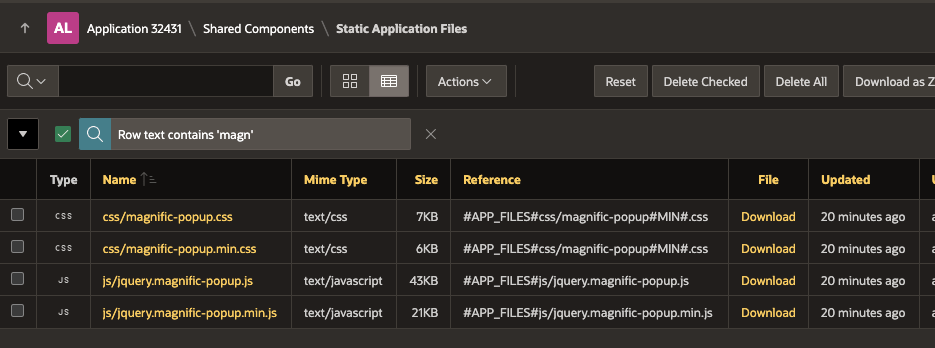
En nuestra aplicación APEX, según cómo hayamos dispuesto la visualización de las imágenes, necesitaremos buscar el selector asociado a cada una de ellas. En mi caso, utilicé el template de CARDS, lo que me da la clase: a-CardView-mediaImg, que puedo usar como selector.

Este código en JS lo agregaremos, de preferencia, a un archivo. Sin embargo, en mi caso, por la demo, lo agrego en la página como función:
Nota: Es importante saber cuándo queremos activar el zoom. En el ejemplo, usaremos el doble clic (dblclick) sobre el selector, pero podría ser un solo clic.
function simpleView(){
  $('.a-CardView-mediaImg').on('dblclick', function(event) {
  event.preventDefault(); // Prevent the default action of double-click

  var $img = $(this);

  // Open the image in magnificPopup
  $.magnificPopup.open({
      items: {
          src: $img.attr('src') // Use the image source from the clicked image
      },
      type: 'image',
      closeBtnInside: false, // Do not close the popup when clicking on the image
      closeOnContentClick: false, // Prevent closing when clicking the image
      image: {
          verticalFit: false // Prevent vertical fit resizing
      }
    });
  });
}
Luego lo inicializaremos:
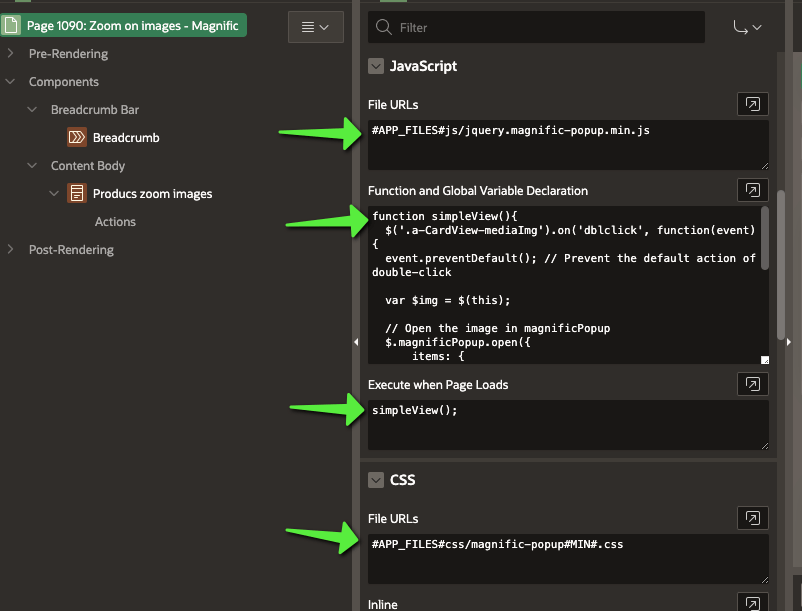
Prueba, haciendo doble clic en la imagen; sigue siendo la misma página, solo se agrega el lightbox para verla en grande:


Un ejemplo más complejo podría ser usando el siguiente JS que abarca muchas más opciones:
function complexView(){
  $('.a-CardView-mediaImg').on('dblclick', function(event) {
    event.preventDefault(); // Prevent default action of double click

    var $img = $(this);
    var imageSrc = $img.attr('src');
    var imageTitle = $img.attr('title'); // Usamos el título de la imagen si está disponible

    // Check if the image has already been opened once, and prevent further action
    if ($img.data('opened')) {
        console.log("Image already opened, ignoring double click");
        return; // If the image is already opened, prevent further actions
    }

    console.log("Opening image for the first time");

    // Open the image in magnificPopup with more options
    $.magnificPopup.open({
        items: {
            src: imageSrc // Use the image source within .slide-v2
        },
        type: 'image',
        closeBtnInside: true,  // Close button inside the popup
        closeOnContentClick: true,  // Allow closing by clicking outside the image
        showCloseBtn: true,  // Show the close button
        enableEscapeKey: true, // Allow closing the popup using the escape key
        gallery: {
            enabled: true, // Allow navigation between images if you have a gallery
            tCounter: '%curr% of %total%' // Display the current and total image count
        },
        callbacks: {
            open: function() {
                console.log("Popup opened");
                // Optionally, you can add custom functionality here
                if (imageTitle) {
                    // Show the image title (if present) below the image in the popup
                    this.content.find('.mfp-img').after('<div class="image-title">' + imageTitle + '</div>');
                }
            },
            beforeClose: function() {
                console.log("Popup is about to close");
                $img.removeData('opened'); // Reset the opened state to allow double click again
            },
            close: function() {
                console.log("Popup closed");
            }
        },
        image: {
            verticalFit: true, // Maintain image aspect ratio while resizing
            titleSrc: 'title'  // Title from image element
        },
    });

    // Mark the image as "opened" so that it doesn't get zoomed again
    $img.data('opened', true);
    console.log("Image marked as opened");
});


}

 aflorestorres.com